General questions
Debekom offers digital services and technical solutions for companies and private individuals throughout Europe. This includes, among other things, online services, hosting and infrastructure solutions, as well as tools for managing and automating business processes.
Our goal is to provide reliable and easy-to-use solutions that can be flexibly adapted to different needs.
No. Our products are clearly intended for users without prior technical knowledge as well. After ordering, you will receive step-by-step instructions that will allow you to set up your product in just a few minutes.
If you still have any questions, we will of course be happy to help you.
All data is stored and processed exclusively in data centers located within the territory of the European Union. Therefore, European data protection standards (GDPR) apply, and your data does not leave the European legal area.
Depending on the product, various payment methods are available. These include, among others, credit card payments and other European payment services. The specific available payment methods will be displayed during the ordering process.
Yes. Many of our services can be flexibly adapted to your needs. More storage space, users, or additional services can be added later. You can also cancel subscriptions in accordance with the agreed terms.
Our services are intended for both private individuals and companies that require reliable digital infrastructure or technical solutions.
Many of our clients are small and medium-sized enterprises, self-employed individuals, or organizations seeking to simplify their technical processes.
You will receive the login details for all ordered products by email from no-reply@debekom.com to the email address provided at the time of ordering, together with instructions for setting up the relevant access.
Debekom and Scaleway
As a reseller of “Scaleway,” “Debekom” can offer you the full range of “Scaleway” products at significantly lower prices. We prepare quotes for individual products on a case-by-case basis, set them up for you, and provide access. For infrastructure projects that you create yourself or that we create together, we provide you with separate access to the “Scaleway” console.
In addition to attractive prices, upon request we can take over the entire deployment and configuration of your infrastructure. You will be assigned a contact person who speaks German or English, receive assistance with architecture-related questions, as well as support in operations and maintenance.
That way, you can focus on your project instead of spending time deploying the cloud platform.
Yes. We help migrate both individual servers and entire cloud or local (on-premises) infrastructures. Together, we plan the migration so that downtime is kept to a minimum.
Scaleway – a strong European cloud partner
“Scaleway” is an innovative cloud services provider founded in 1999 and owned by the French “Iliad” group, which serves more than 50 million customers in Europe. The company offers a wide range of cloud infrastructure services, including virtual servers, storage solutions, and networking products suitable for both startups and established businesses. “Scaleway” is particularly known for its user-friendly platform, which enables rapid deployment of cloud resources, as well as for its cost-effective solutions.
With data centers in Europe, “Scaleway” offers global infrastructure that allows companies to store their data closer to end users. The company’s sustainable direction is particularly worth highlighting. “Scaleway” uses renewable energy to operate its data centers and follows a clear strategy aimed at reducing its ecological footprint.
Thanks to these innovative solutions and a strong commitment to sustainability, “Scaleway” has established itself as an important player in the European cloud market.
“Debekom” VPN
VPN means an encrypted connection from your computer to an intermediary server and back. Instead of being directly exposed to the public internet, your data is protected as if in an invisible tunnel. What exactly does this benefit give you?
- Full encryption: There are many ways someone could try to intercept your data traffic, but even if they succeeded, no one would be able to make use of it. Debekom VPN uses WireGuard encryption standards that meet the most modern technical standards and are also used by the most well-known VPN providers.
- Access to international content – legally and easily: By using our VPN, you can choose servers in various countries. This helps you to,
- use locally blocked content (e.g. streaming services or news)
- get better prices (e.g. in online stores or for bookings). this is permitted and is used by many companies as well as private individuals.
- Anonymity on the internet: Your computer remains invisible on the internet behind the VPN. The websites you visit only see the VPN server, not your real location or identity. Therefore, no conclusions can be drawn about you from metadata, and the internet receives no information about you that you do not publish yourself.
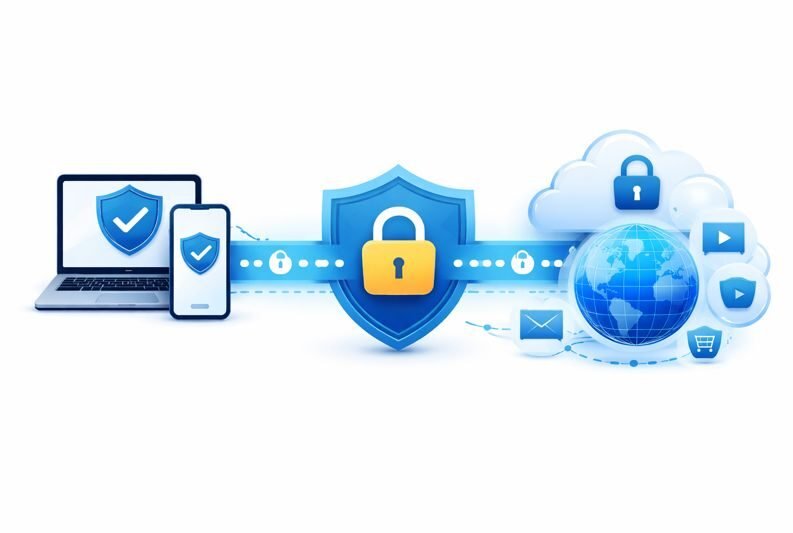
When ordering our VPN, you do not choose the number of devices used (it is practically unlimited), but the number of connections used simultaneously. For each of these connections, after ordering you will receive by email a QR code for setting up the VPN on a mobile device, as well as a configuration file for setup on a desktop device (PC). You can install them on as many devices as you like, but use each one only once at a time.
Setup usually takes less than two minutes.
Install the free WireGuard app for Android or iPhone.
Open the app.
Scan the QR code you received from us by email.
Activate the connection.
From this moment on, all your internet traffic is encrypted.
Every encryption adds a minimal additional overhead. However, thanks to the modern WireGuard protocol, it is very small. In most everyday situations, you will not notice any difference.
Yes. Depending on the plan you ordered, several VPN locations are available in Europe. You can switch between the available locations at any time.
Yes. Using the WireGuard app, you can activate or disable the VPN connection at any time with a single click / tap.
Debekom Drive
With Debekom by your side, you have a reliable partner that takes care of the entire technical infrastructure. Our solutions are designed especially for you – simple, secure, and convenient to use.
Your data is fully protected in the Scaleway infrastructure. It meets high security requirements and European data protection standards. This means: your data remains protected, confidential, and under your control.
We use Nextcloud to build the user interface because this platform offers a modern, professional, and proven user interface. Nextcloud is one of the world’s leading cloud solutions and is used by millions of users. With Debekom and Nextcloud, you get the best of both worlds: a secure, reliable, and easy-to-use cloud storage solution.
Simply install the free Nextcloud app for Android or iPhone and log in using the credentials you received from Debekom.
Then you will be able to:
open and edit files
automatically upload photos
download documents and use them offline
share files with others
This way, you will always have your data at hand.
Yes. The Nextcloud app can automatically upload all newly taken photos and videos to your Debekom Drive.
This way, your memories will not be lost even if your smartphone breaks or gets lost.
Yes. You can share individual files or entire folders via a link or grant access to specific people. You decide whether other users can only view the files or also edit them.
Yes. There is a synchronization app for Windows, macOS, and Linux.
After setup, your Debekom Drive will appear as a regular folder on your computer. Changes are automatically synchronized with the cloud.
Yes. Files can be saved locally and will then be accessible even without an internet connection. As soon as the connection is restored, changes will be synchronized automatically.
Only you and the people to whom you explicitly grant access.
Debekom does not analyze your files and does not sell user data. You always remain in control of who is allowed to access your data.Yes. Many customers use Debekom Drive as an alternative to commercial cloud services. Documents, photos, and other files can be easily transferred and then synchronized across all devices.
Yes. Depending on the features you have ordered, multiple people can work on documents at the same time, leave comments, or manage files together.
This is especially suitable for families, associations, and companies.
Yes. Many customers use Debekom Drive as an alternative to commercial cloud services. Documents, photos, and other files can be easily transferred and later synchronized across all devices.
Setting up and using Debekom Drive in Windows Explorer
Using the Nextcloud desktop application, you can view, open, and edit your files from Debekom Drive directly in Windows Explorer. There is no need to log in through the browser every time.
Why Nextcloud?
The Debekom Drive user interface is based on Nextcloud – a recognized cloud platform created by the German software company Nextcloud GmbH. Therefore, Debekom Drive also uses the official Nextcloud apps for Windows, macOS, Linux, Android, and iOS. If you see the name or logo Nextcloud in this guide, it means you are in the right place – the app connects to your Debekom Drive.
After setup, your Debekom Drive will appear as a separate folder in Windows Explorer. Changes will be automatically synchronized with your Debekom Drive.
1. Check whether Debekom Drive is already installed
First, open the Windows Start menu and type Nextcloud into the search.
If “Nextcloud” is found
Launch the application.
The Nextcloud icon should then appear in the bottom-right Windows taskbar:

You may first need to click the small arrow ^ to show hidden icons.
If your Debekom account is already set up there, you can open the synchronized folder directly through the app.
If “Nextcloud” is not found
In that case, you first need to install the desktop application.
2. Install the Debekom Drive desktop application
Download the latest Nextcloud Desktop Client for Windows:
https://nextcloud.com/install/#install-clients
Then run the downloaded installation file and follow the instructions.
After completing the installation, launch Nextcloud.
3. Connect Debekom Drive
When launching it for the first time, select “Log in”
You will then be asked to enter the server address.
Enter your Debekom Drive address here: https://drive.debekom.lt
Then click “Continue” or “Next”.
Your web browser will open and display your Debekom Drive login page.
Log in there using your Debekom Drive login credentials and confirm access for the desktop application.
After that, you can return to the Nextcloud client.
4. Displaying Debekom Drive in Windows Explorer
Once the setup is completed successfully, your Debekom Drive will be automatically integrated into Windows Explorer.
Open Explorer, for example, by using:
Windows key + E
There you will find your synchronized Debekom Drive folder.
Depending on the Windows version and setup, it may appear, for example, under “Start”, “This PC”, or in the left sidebar of Explorer.
You can use the folder like a regular Windows folder.
5. How does synchronization work?
The desktop application automatically synchronizes your files between your computer and Debekom Drive.
This means:
You edit a file on your computer:
The changed file is automatically uploaded to Debekom Drive.
You save a file via the Debekom Drive website:
Then the file will also appear on your computer.
You use multiple computers:
Changes can be automatically transferred to other connected devices.
Synchronization usually happens automatically in the background while the Nextcloud application is running and there is an internet connection.
6. Store files only in the cloud or also on the computer
Depending on the settings, files can either be stored entirely on your computer or downloaded from Debekom Drive when needed.
This allows you to save space on your computer.
In Windows Explorer, small symbols next to the files indicate the respective status. For example, you can use them to see whether a file is already available locally or still needs to be downloaded from Debekom Drive.
If you open a file that is not yet stored locally, it will be downloaded automatically.
In addition, by right-clicking a file or folder you can open the Nextcloud functions and – depending on the version used – specify whether the data should be permanently available locally.
7. What happens if there is no internet connection?
You can use files that are already stored locally on your computer even without an internet connection.
Changes are first saved on your computer. When an internet connection becomes available again, Debekom Drive automatically synchronizes the changes.
Meanwhile, files that are stored only in the cloud and have not yet been downloaded require an internet connection before they can be opened.
8. Check the synchronization status
The Nextcloud icon in the bottom-right corner of the Windows taskbar shows the current synchronization status.
There, among other things, you can see:
- whether synchronization is complete,
- whether files are currently being transferred,
- whether an error has occurred,
- which files were synchronized most recently.
If you encounter problems, you can open the app and review more information about the synchronization status there.
9. Debekom Drive is installed, but it is no longer visible in Explorer
If you were previously able to see Debekom Drive in Explorer, but the folder suddenly disappeared, first check:
- In the Windows Start menu, search for Nextcloud and launch the app.
- In the bottom-right corner of the taskbar, check whether the Nextcloud icon is displayed.
- Open the app and check whether your Debekom account is still connected.
- Check whether a synchronization folder is set for your account.
- If necessary, restart the Nextcloud app or your computer.
If the account is no longer set up, you can reconnect it as described above using https://drive.debekom.lt.
In short: Debekom Drive and Windows Explorer
Debekom Drive securely stores your files in the cloud.
The Nextcloud Desktop application ensures the connection between your Windows computer and Debekom Drive.
Windows Explorer then gives you familiar access to your files.
As a result, you can use your documents almost the same way as files stored only on your computer – synchronization with Debekom Drive happens automatically in the background.
Need help?
If, despite these steps, Debekom Drive still does not appear in Windows Explorer or synchronization reports an error, Debekom Support will be happy to help you.
If possible, please let us know:
- which version of Windows you are using,
- whether the Nextcloud application can be launched,
- what message is displayed in the Nextcloud application,
- and – if possible – a screenshot of the error message.
This will help us identify the cause of the problem more quickly.